QR Code Scanner & Generator for Chrome
Right-click to scan a QR code on any page. Click the toolbar icon to make one for the page you’re on.
Free · Chrome and Edge
How it works
- 1
Add it to Chrome
Open the Chrome Web Store page and click “Add to Chrome”. Pin SnapQR to the toolbar so it’s one click away.
- 2
Scan
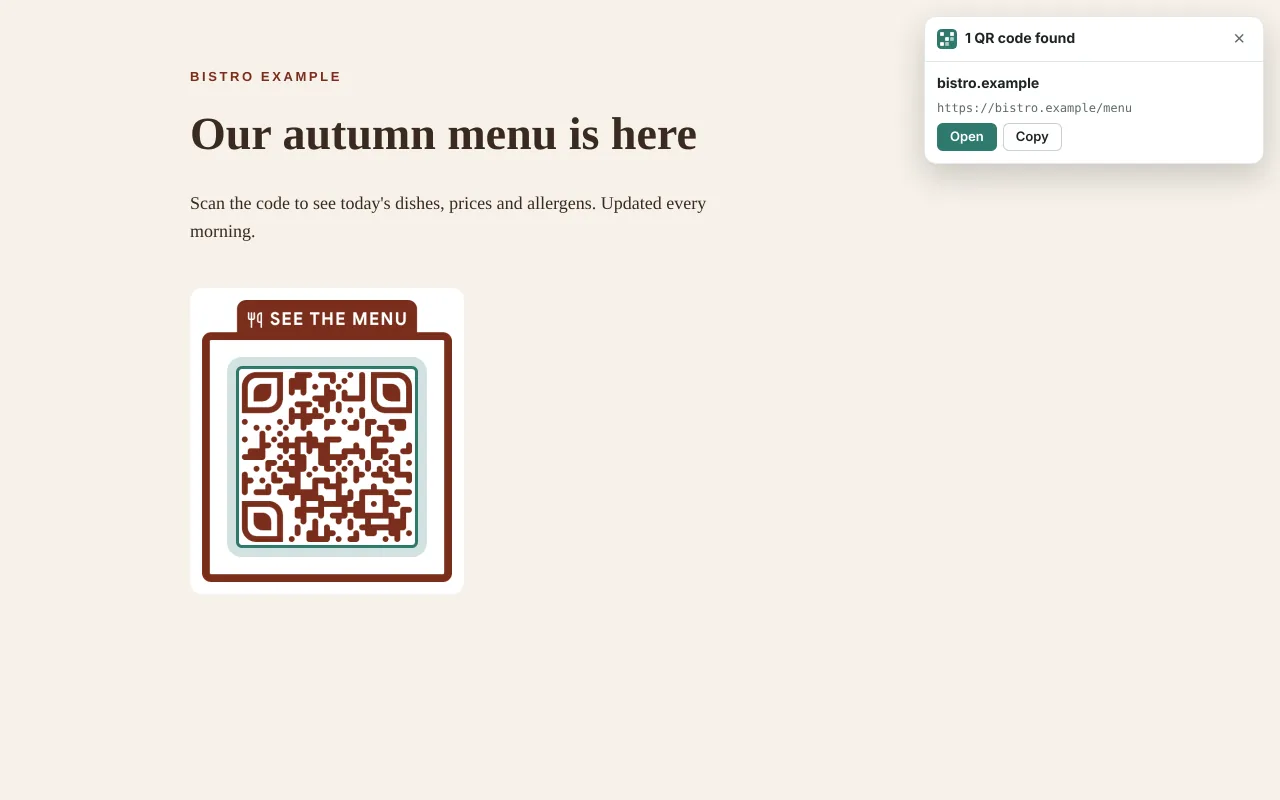
Right-click an image or the page and choose “Scan QR code”. The result opens in a small card on the page.
- 3
Create
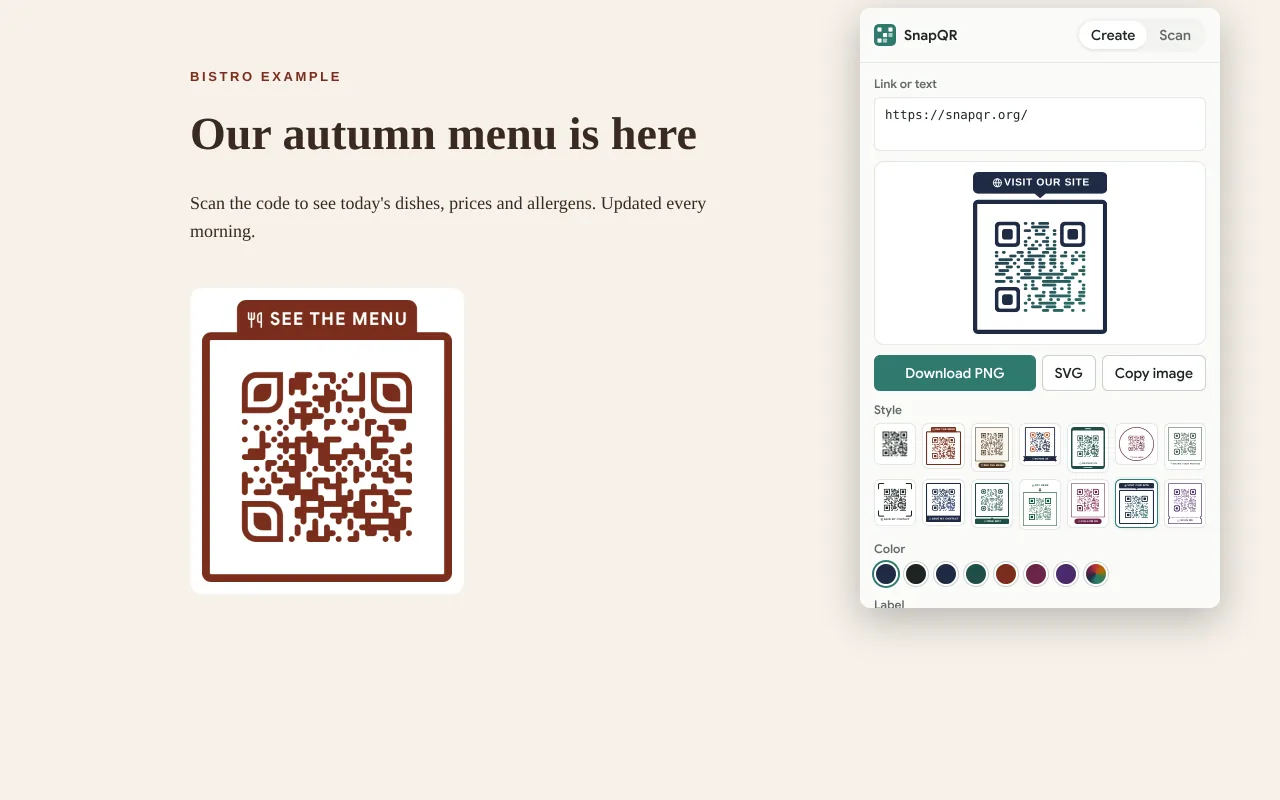
Click the SnapQR icon. A QR code for the page you’re on is ready to download, copy or restyle.
Scanning a QR code that’s on your screen
A QR code on a web page or in an email is awkward to scan with your phone. The extension reads it where it is:
- Right-click an image → “Scan QR code in this image”.
- Right-click the page → “Scan QR codes on this page”. It finds every code on screen, even several at once, and outlines each one.
- Open the popup → Scan: scan the tab, open an image file, or paste a screenshot with Ctrl+V.
Links show the site name first, with a warning for short links, plain http, look-alike letters and bare IP addresses, so you can decide before you open them. These are the same checks as the QR code scanner on our site. Your last 50 scans stay in this browser until you clear them.
Making a QR code for the page you’re on
Click the toolbar icon (or press Alt+Shift+Q) and the code for the current tab is already there. Pick one of 13 styles with a frame and a label, change the color or the label text, then download a PNG or SVG, or copy the image straight into a document or chat. Right-click a link or selected text to make a code for just that.
The extension keeps things quick on purpose. For a logo in the middle, a print-ready PDF or a WiFi code, open the full QR code generator. Making a code for every table of a restaurant? The bulk QR code generator does a whole list at once.
What the extension can see
Very little, and only when you ask. It doesn’t read your pages in the background, and Chrome shows no permission warning when you install it.
| Permission | Why |
|---|---|
activeTab | Look at the current tab (a screenshot to scan, or its address to make a code) only after you click the icon or a menu item. |
contextMenus | The “Scan QR code” and “Create QR code” items in the right-click menu. |
scripting | Show the result card on the page. |
storage | Remember your style and recent scans, in this browser only. |
offscreen | Decode screenshots and draw QR images in the background. |
Codes are read and made on your computer. Nothing you scan or create is sent to us or anyone else, and there are no ads or tracking in the extension.
Questions people ask
Yes. No account, no trial, no ads, and no limit on how many codes you scan or make.
Yes, both install extensions from the Chrome Web Store. In Edge, allow “extensions from other stores” when it asks. You need Chrome 116 or newer.
No. The screenshot is decoded inside your browser and thrown away. The extension never sends what it scans anywhere.
If it’s on screen in a Chrome tab, yes: right-click the page and choose “Scan QR codes on this page”. Pause the video first so the code is sharp.
Open the popup, go to Scan and press “Clear”. Removing the extension deletes it too.
On a phone, open snapqr.org: the QR scanner works in the browser with your camera.